






TECHNICAL SUPPORT


Published 2026-04-02
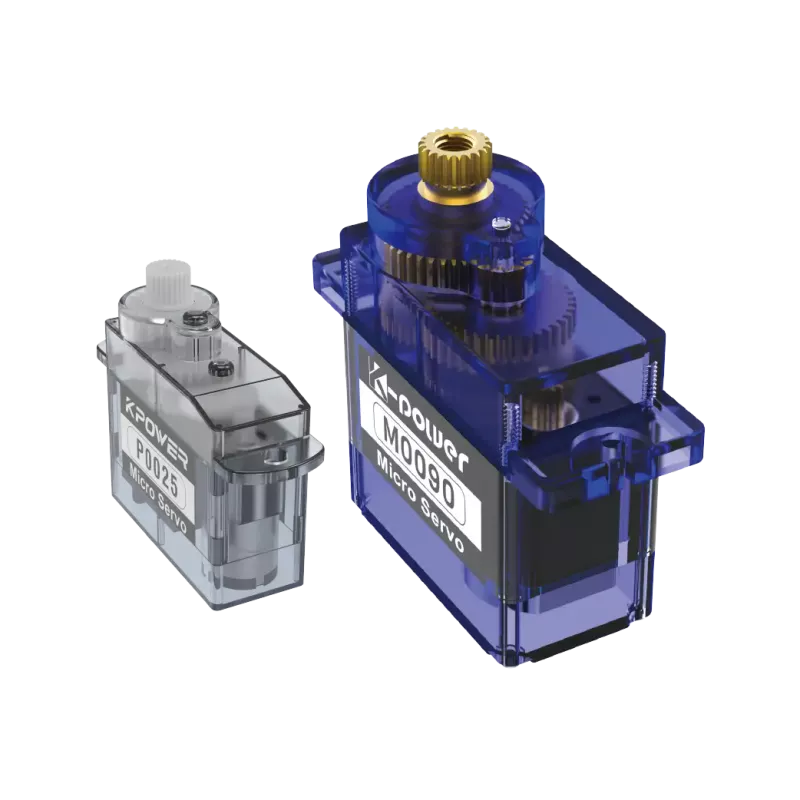
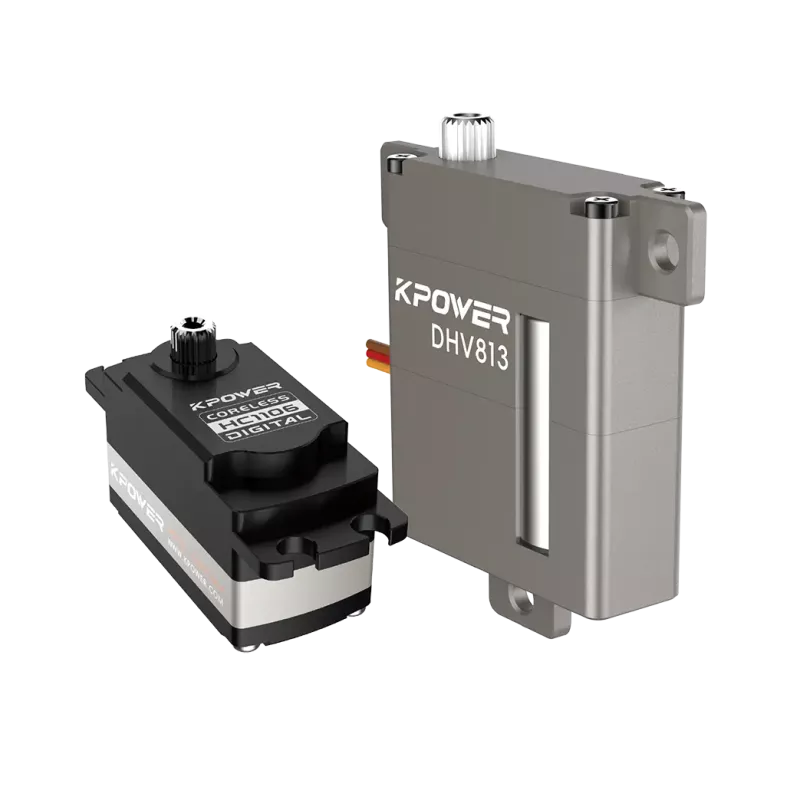
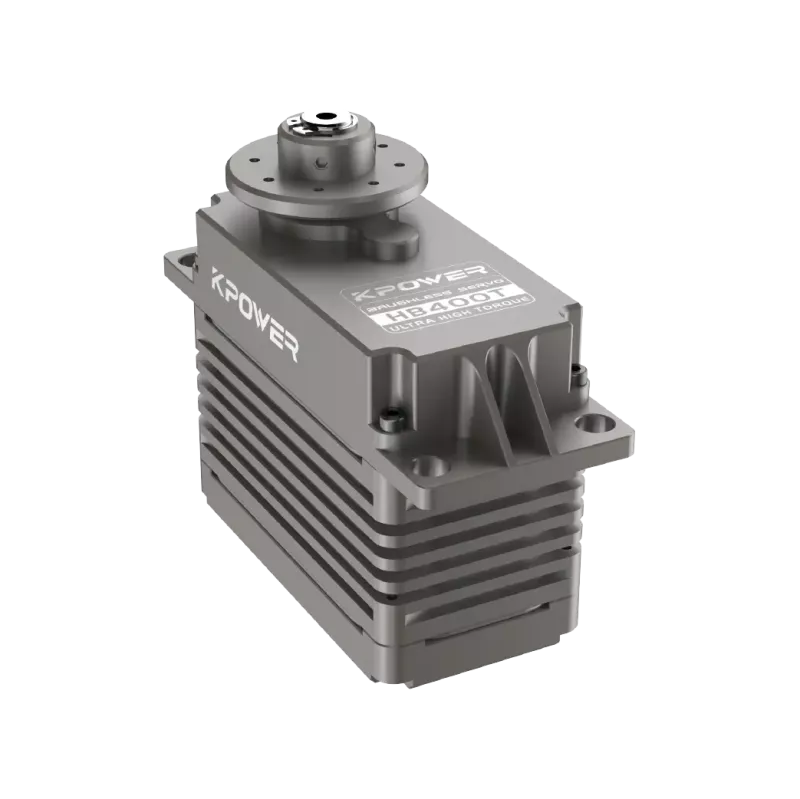
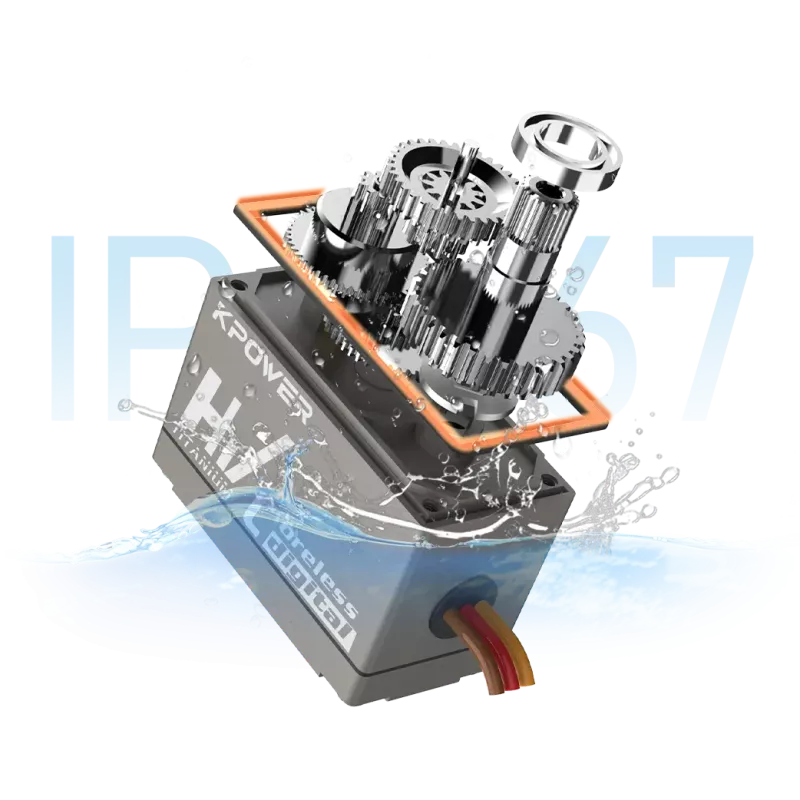
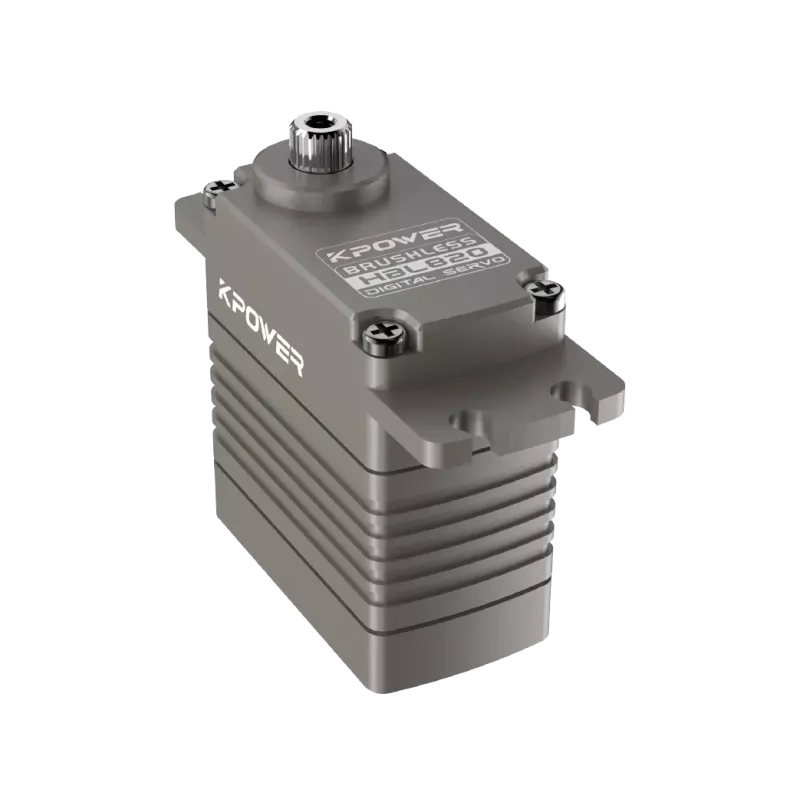
This guide focuses on the process of driving aservousing a single-board computer.servos are commonly used in various projects, such as robotic arms and automated control systems, due to their ability to provide precise angular control. By following the steps outlined in this article, you can successfully connect and control aservowith a single-board computer.
A single - board computer with GPIO pins (General - Purpose Input/Output).
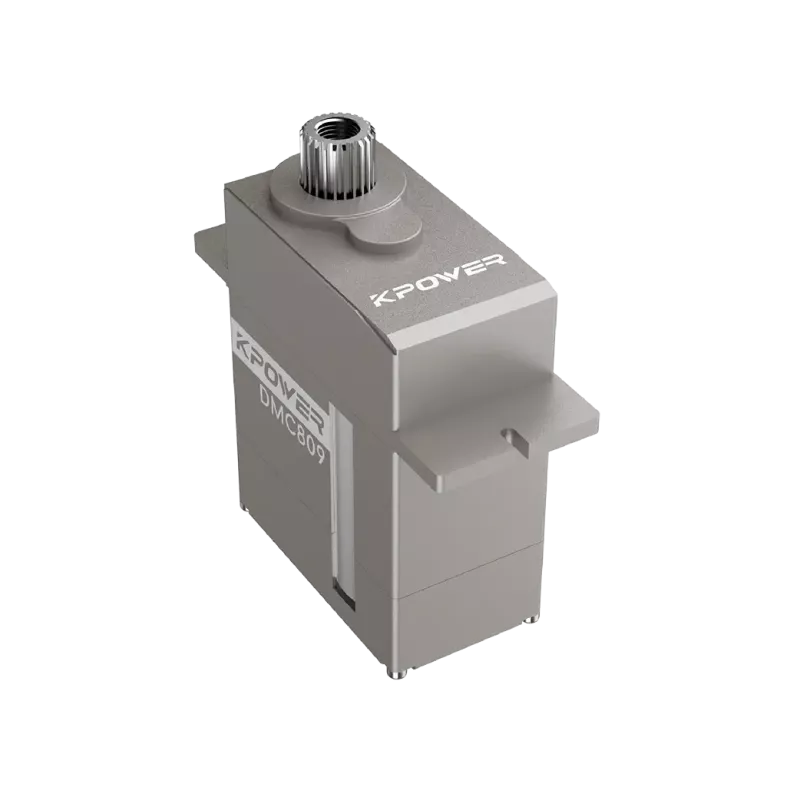
A servo motor.
A breadboard (optional but useful for easy prototyping).
Jumper wires for making electrical connections.
Servos typically require a Pulse - Width Modulation (PWM) signal to control their position. The PWM signal has a standard frequency of 50Hz, and the pulse width determines the servo's angle. For example, a pulse width of about 1.5ms usually corresponds to the servo's neutral position, while a shorter pulse (e.g., 1ms) moves the servo to one end of its range, and a longer pulse (e.g., 2ms) moves it to the other end.
1. Connect the power wire (usually red) of the servo to the 5V pin on the single - board computer (make sure the computer's power supply can handle the servo's power requirements).
2. Connect the ground wire (usually black or brown) of the servo to the GND pin on the single - board computer.
3. Connect the signal wire (usually orange or yellow) of the servo to one of the GPIO pins on the single - board computer. For instance, if you are using a GPIO pin numbered 18, this will be the pin through which the PWM signal is sent.
1. Install the necessary Python libraries. For many systems, theRPi.GPIOlibrary can be used to control the GPIO pins. You can install it using the appropriate package manager.
2. Write a Python script to generate the PWM signal. Here is a basic example:
import RPi.GPIO as GPIO import time # Set the GPIO mode GPIO.setmode(GPIO.BCM) # Set the GPIO pin for the servo servo_pin = 18 GPIO.setup(servo_pin, GPIO.OUT) # Create a PWM instance pwm = GPIO.PWM(servo_pin, 50) pwm.start(2.5) # Initial PWM duty cycle try: while True: # Move the servo to different positions by changing the duty cycle pwm.ChangeDutyCycle(2.5) time.sleep(1) pwm.ChangeDutyCycle(7.5) time.sleep(1) pwm.ChangeDutyCycle(12.5) time.sleep(1) except KeyboardInterrupt: pwm.stop() GPIO.cleanup()1. Run the Python script. You should see the servo move to different positions as specified in the script.
2. If the servo does not move, check the following:
Ensure that the power and ground connections are correct.
Check if the GPIO pin number in the script matches the actual pin to which the servo's signal wire is connected.
Make sure the single - board computer has enough power to drive the servo.
In conclusion, driving a servo with a single - board computer involves understanding the basic principles of PWM signals, making proper hardware connections,and writing appropriate software scripts. To successfully implement this in your projects, you should first plan your hardware setup carefully, then write and test your code step - by - step. If you encounter issues, first check the connections and then review your code for any logical errors. By following these steps, you can effectively use a single - board computer to control a servo for a wide range of applications.
Update Time:2026-04-02

Contact Kpower's product specialist to recommend suitable motor or gearbox for your product.


