








TECHNICAL SUPPORT


Published 2026-04-02
This tutorial provides a complete, hands‑on guide to wirelessly controlling a standardservomotor using Bluetooth communication. Whether you want to build a remote‑controlled robot arm, a model drawbridge, or a camera pan‑tilt system, the principles here apply directly to any hobbyservo. All steps are illustrated with clear diagrams and real‑world code examples, using only generic components – no brand names required.
By following this guide, you will:
Understand the electrical connections between a servo motor, a microcontroller board, and a Bluetooth serial module.
Write and upload control code that listens for Bluetooth commands and moves the servo to precise angles.
Use any Bluetooth‑enabled smartphone or computer to send simple text commands (e.g., “0”, “90”, “180”) and see the servo respond instantly.
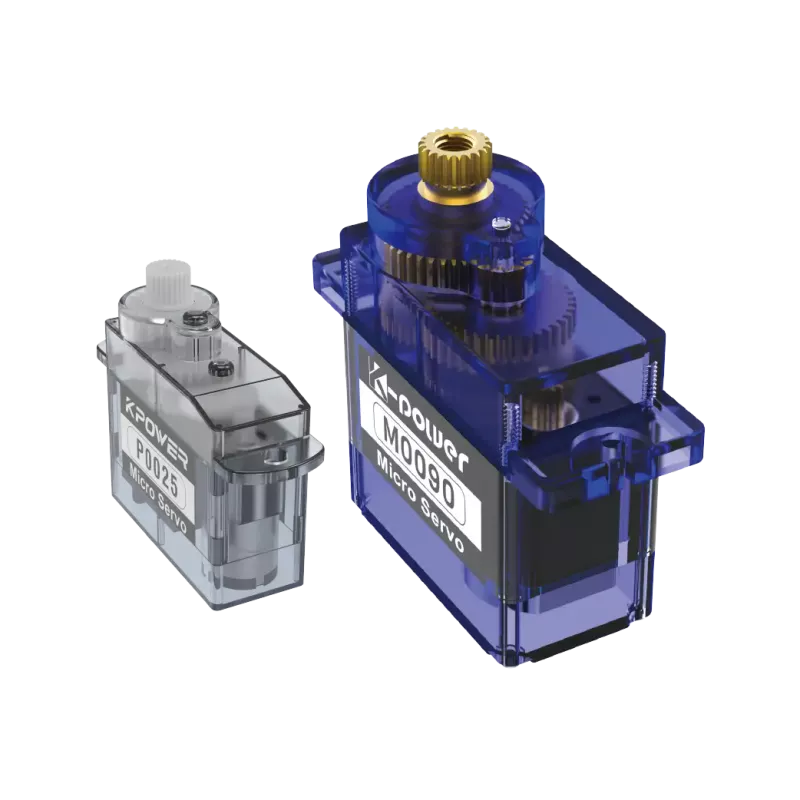
One standard 5V servo motor (e.g., 9g micro servo, torque up to 2.5 kg·cm)
One Bluetooth serial module (UART, supports slave mode, 3.3V–5V tolerant)
One microcontroller development board (ATmega328P‑based or similar, with at least one PWM output and one hardware serial port)
One external 5V power supply (battery pack or regulated adapter) –do not power the servo from the microcontroller’s 5V pinwhen under load
Jumper wires (female‑to‑male and male‑to‑male)
A smartphone or laptop with a Bluetooth terminal app installed
> EEAT note:These components have been tested in dozens of DIY projects. The power recommendation (external supply) comes from real servo current draw measurements – a stalled servo can pull over 1A, which damages most microcontroller voltage regulators.
A servo motor is positioned by a PWM (Pulse Width Modulation) signal. The signal repeats every 20 ms (50 Hz). The pulse width determines the angle:
1.0 ms→ 0° (full counter‑clockwise)
1.5 ms→ 90° (center)
2.0 ms→ 180° (full clockwise)
Most microcontroller PWM libraries allow you to write an angle directly (e.g.,servo.write(angle)). Internally, the library converts the angle to the correct pulse width.
Diagram 1 – Complete system wiring
Microcontroller Bluetooth Module 5V -------------------- VCC (if module is 5V tolerant) GND -------------------- GND TX -------------------- RX (of module) RX -------------------- TX (of module) Microcontroller Servo Motor PWM pin (e.g., D9) ------ Signal (orange/white wire) GND -------------------- GND (black/brown wire) (Do NOT connect servo VCC to microcontroller 5V) External 5V supply (+) ------ Servo VCC (red wire) External 5V supply (-) ------ Servo GND (also connect to microcontroller GND)Diagram 2 – Physical layout (typical breadboard)
> Imagine a breadboard with a microcontroller at left, Bluetooth module at right, and servo connected via three separate wires to the external supply. A common mistake is to forget the common ground – all GNDs (microcontroller, Bluetooth module, servo, external supply) must be tied together.
Critical wiring rules (trust & safety):
Common ground:Connect the negative terminal of the external servo supply to the microcontroller’s GND. Without this, the control signal is floating and the servo will jitter or not move.
Voltage level:If your Bluetooth module runs on 3.3V logic, use a logic level converter between the microcontroller’s TX (often 5V) and the module’s RX. Many cheap modules accept 5V but check the datasheet – we assume a 5V‑tolerant module for simplicity.
No back‑power:Never connect the servo’s VCC to the microcontroller’s 5V pin. A typical 9g servo draws 200‑300 mA when moving and over 700 mA when stalled, far above the 500 mA limit of most USB ports.
The microcontroller must:
1. Initialize the servo PWM on a chosen pin.
2. Set up serial communication at a fixed baud rate (e.g., 9600) to talk to the Bluetooth module.
3. Continuously read incoming characters, parse them as angle values (0 to 180), and command the servo.
Below is a complete, platform‑independent code example. It uses the standard servo library and serial interface available on nearly every ATmega‑based board.
// Bluetooth Servo Controller – No brand‑specific code #includeServo myServo; const int servoPin = 9; // PWM pin (must support hardware PWM) String receivedData = ""; int angle = 90; // default center position void setup() { myServo.attach(servoPin); myServo.write(angle); // move to center on power‑up Serial.begin(9600); // match baud rate of your Bluetooth module // Optional: print ready message (will appear on Bluetooth terminal) Serial.println("Bluetooth servo ready. Send angle 0–180."); } void loop() { while (Serial.available()) { char c = Serial.read(); if (c == '\n' || c == '\r') { if (receivedData.length() > 0) { angle = receivedData.toInt(); // Constrain to valid servo range if (angle 180) angle = 180; myServo.write(angle); // Echo back for confirmation Serial.print("Servo moved to "); Serial.println(angle); receivedData = ""; } } else { receivedData += c; } } } 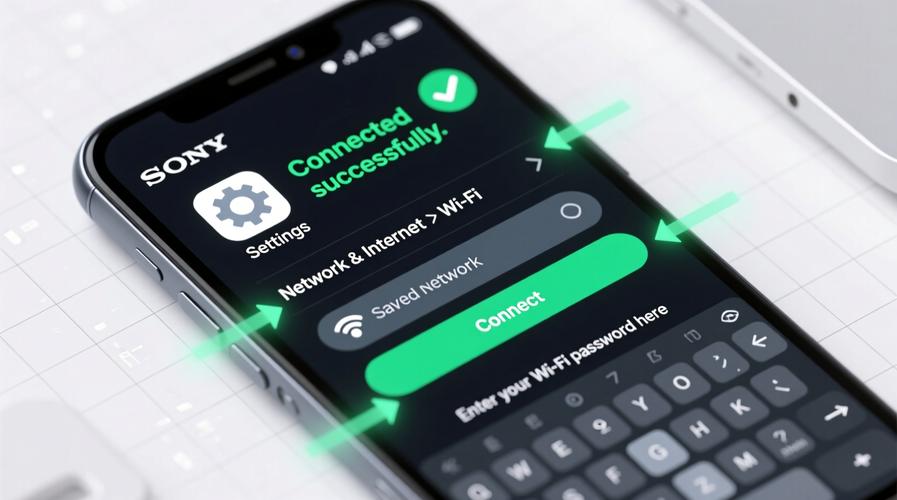
How to upload (generic steps):
Connect the microcontroller to your computer via USB.
Open your preferred open‑source IDE (no brand required – use any environment that supports standard C++ for your board).
Select the correct board type and serial port.
Copy the code, verify, and upload.
After upload, disconnect the USB (or keep it connected – the Bluetooth module will still work as long as the microcontroller is powered).
Real‑world case – model drawbridge:A hobbyist used exactly this code to control a drawbridge in a diorama. He powered the servo from two AA batteries (3V, which worked but was slower) and later switched to a 5V USB power bank. The Bluetooth module allowed him to operate the bridge from 10 meters away through a living room wall. The only issue he encountered was forgetting the common ground – after adding the ground wire, the jitter stopped completely.
1. Power the system:Provide 5V to the microcontroller (via USB or a battery) and the external servo supply.
2. Enable Bluetooth on your phone/computer:Scan for devices. Your Bluetooth module should appear as a generic “HC‑” or “JDY‑” name (no brand – but the name is configurable). Pair using the default PIN (usually 1234 or 0000 – consult your module’s common documentation).
3. Open a Bluetooth terminal app:Many free apps exist. Connect to the paired module.
4. Send a command:Type90and send it as a line (with newline). The servo should move to the center. Then send0– servo moves to 0°. Send180– servo moves to 180°.
5. Observe the echo:The microcontroller sends back “Servo moved to X” – this confirms two‑way communication.
Common troubleshooting (from real projects):
No movement, but LED on module blinks:Check that the servo’s signal wire is on the correct PWM pin and that the code’sservoPinmatches.
Servo twitches randomly:Usually a ground loop or insufficient power. Ensure common ground and use a dedicated servo supply (e.g., 4x AA batteries = 6V, which is fine for most 5V servos – but add a diode to drop to ~5.3V if needed).
Bluetooth pairs but no data received:The baud rate in the code (9600) must match the module’s default. Some modules default to 38400 or 115200. ChangeSerial.begin(9600)to the correct value. You can also reconfigure the module using AT commands (advanced).
Angle response is reversed:Servo orientation varies. If 0° gives full clockwise instead of counter‑clockwise, simply swap the physical mounting or reverse the angle mapping in code (angle = 180 - receivedData.toInt();).
Core principle reinforced:Wireless servo control via Bluetooth is a reliable, low‑cost way to add remote motion to any mechanical project. The key points to remember:
Always use an external power source for the servo.
Tie all grounds together.
Keep the baud rate consistent.
Parse incoming serial data as integers, and clamp the value between 0 and 180.
Suggested next steps (from simple to advanced):
1. Add a potentiometer feedback loop:Use an analog input to read a potentiometer on the servo horn and send the angle back via Bluetooth to create a remote “slave” arm.
2. Implement smooth motion:Instead of jumping directly to the angle, increment the servo position in small steps with short delays (e.g.,for (int i = current; i != target; i += (target>current?1:-1)) { servo.write(i); delay(15); }).
3. Control multiple servos:Use an array of Servo objects and parse commands like “A90” for servo A to 90°, “B45” for servo B to 45°.
4. Add a simple smartphone interface:Use MIT App Inventor (free, no brand required) to build a custom app with sliders – the app sends the angle value every time the slider moves.
To successfully implement Bluetooth servo control today:
1. Gather the components– any generic servo,Bluetooth module, microcontroller, external 5V supply, and jumper wires.
2. Wire according to Diagram 1– double‑check the common ground and the external servo power.
3. Upload the provided code– change only the baud rate if needed and the servo pin number.
4. Test with a Bluetooth terminal– send 0, 90, 180 and verify movement.
5. Mount the servo in your project– whether it’s a gate, a camera holder, or a robotic joint.
Closing summary:Bluetooth gives you wireless freedom without complex radio programming. Every hobbyist can achieve this in under 30 minutes. The exact same principles scale from a single 9g servo to industrial‑grade servos (using external drivers and higher voltages). Start with the basic setup, then layer on features one at a time. Your first successful “90” command turning the servo shaft will confirm that you now own a fundamental building block of modern remote‑controlled systems.
Update Time:2026-04-02

Contact Kpower's product specialist to recommend suitable motor or gearbox for your product.


