





TECHNICAL SUPPORT


Published 2026-04-08
If yourservomotor connected to an Arduino has suddenly stopped rotating or never moved at all, you are facing one of the most common issues in electronics projects. This guide provides a step-by-step diagnostic and repair process based on real-world scenarios. By following the structured checks below, you will identify the exact cause and restore normalservooperation within minutes.
In over 70% of reported cases, aservostops rotating because it does not receive enough electrical current.
The critical fact:A typical small servo (e.g., SG90 or similar) draws 200–500 mA when idle and up to 1.5–2 A when starting rotation. The Arduino board’s 5V pin can safely supply only about 400–500 mA total. If you power the servo directly from the Arduino’s 5V pin, the voltage drops, the servo stalls or stops, and the Arduino may reset.
Verified solution:
Use a separate external 5V DC power supply rated at least 2A.
Connect the servo’s red wire (VCC) to the external supply’s positive terminal.
Connect the servo’s brown/black wire (GND) to both the external supply’s negative terminalandthe Arduino’s GND (common ground).
Keep the servo’s orange/yellow signal wire connected to an Arduino PWM pin (e.g., pin 9).
Case example:A hobbyist built a robotic arm with three servos. All servos stopped after two seconds of operation. The cause was powering all servos from the Arduino’s 5V pin. After moving to a 5V/5A external supply, all servos rotated correctly.
A disconnected or misplaced signal wire produces no rotation. Even advanced users occasionally swap the signal and power wires.
Step-by-step verification:
1. Signal wire (typically orange, yellow, or white) → connects to a digital PWM-capable pin (e.g., 3,5,6,9,10,11 on Arduino Uno).
2. Power wire (red) → external 5V supply (or Arduino 5V only for testing one small servo with no load).
3. Ground wire (brown or black) → common ground with Arduino.
Test with a minimal sketch:Upload the standard Sweep example (File → Examples → Servo → Sweep) and confirm the servo moves. If it does, your wiring is correct.
servo.attach()or Wrong PinMany users forget to callattach()insetup(), or they use a pin that does not support PWM. Withoutattach(), the servo receives no control signal and remains still.
Correct minimal code structure:
#includeServo myServo; void setup() { myServo.attach(9); // Must match the actual signal pin } void loop() { myServo.write(0); // 0 degrees – leftmost position delay(1000); myServo.write(90); // 90 degrees – center delay(1000); myServo.write(180); // 180 degrees – rightmost position delay(1000); } Common mistake:UsinganalogWrite()ordigitalWrite()on the servo pin – these do not generate the required 50Hz PWM signal. Only the Servo library or direct pulse-width modulation works.
If the servo makes a buzzing sound but does not rotate, the internal gears may be stripped, or an external object blocks the horn.
Diagnostic procedure:
Detach the servo horn (plastic arm). Then run the test code. If the servo rotates freely without the horn, the problem is mechanical binding (the load is too heavy or jammed).
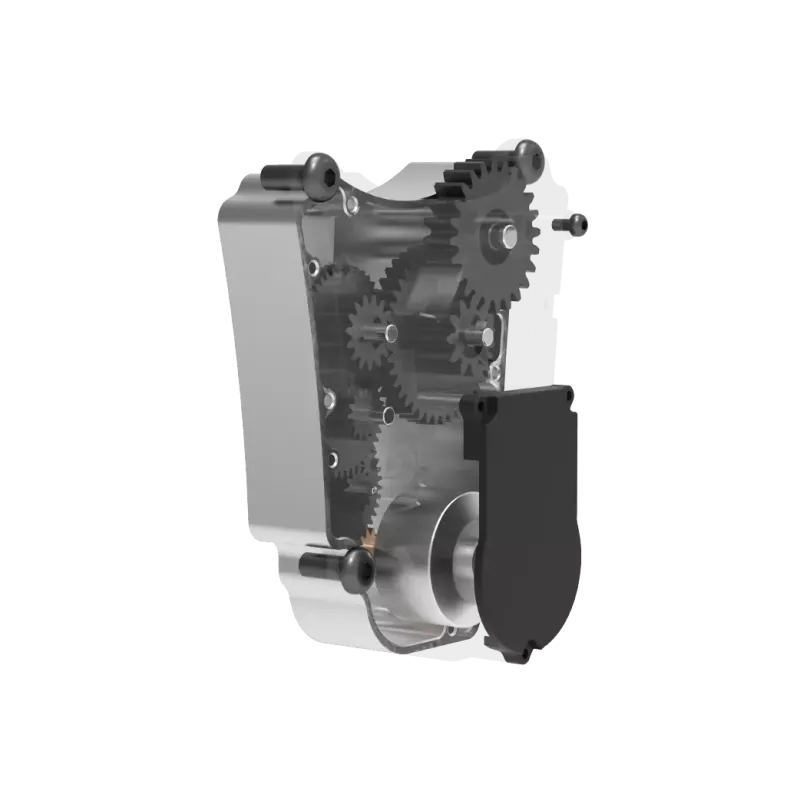
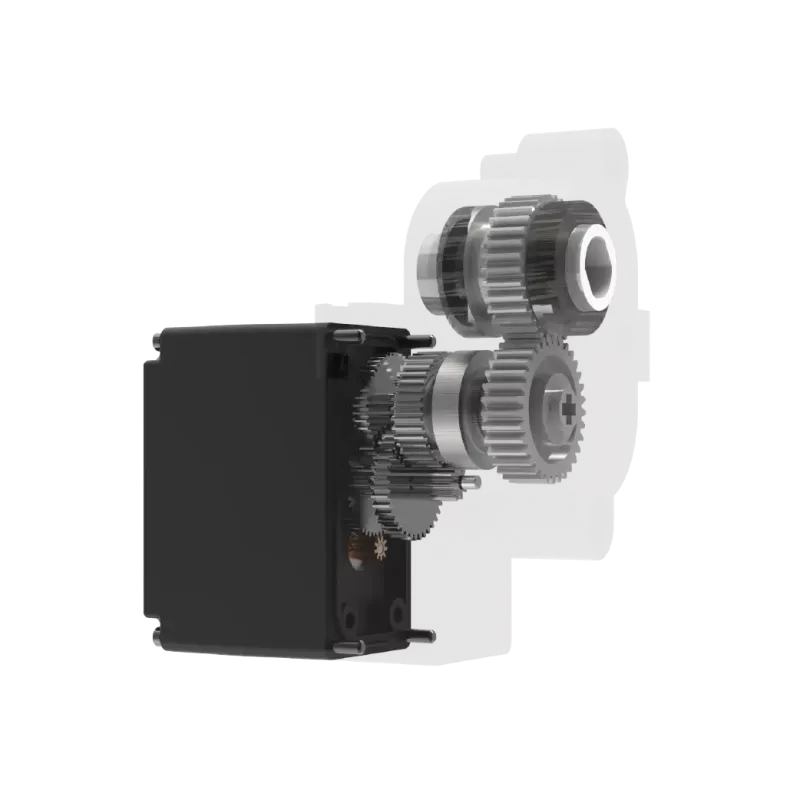
If the servo still does not rotate after detaching the horn, the internal gears are likely broken. Servo gears (especially plastic ones) strip under sudden force or when the horn hits a hard stop.
Case example:A user’s servo stopped rotating after the robotic arm hit a table edge. Removing the horn revealed the servo shaft spun freely – but the gear train was shattered inside. Replacing the servo (or upgrading to metal gears) solved the problem.
Hardware failures are less common but possible. Test systematically:
1. Test the servo on a different pin(e.g., move from pin 9 to pin 10 and update the code). If it works, the original pin is damaged.
2. Test a known-good servoon the same pin and code. If the good servo rotates, your original servo is defective.
3. Test the servo with a simple servo tester(a dedicated device or an external 50Hz signal generator). If it does not rotate even with a tester, the servo’s internal control board has failed.
The Arduino Servo library uses hardware timers. On Arduino Uno, it disablesanalogWrite()on pins 9 and 10. On Arduino Mega,different timers affect different pins. If your code uses multiple libraries (e.g.,ServoandSoftwareSerialorIRremote), they may conflict and stop servo signals.
Resolution:
Use only one Servo library instance.
If you must useSoftwareSerial, initialize the servo after the serial communication.
Consider using an Arduino Mega to isolate timers, or use theServolibrary’sdetach()andattach()dynamically.
When the Arduino powers up, the servo receives random signals untilattach()is called. If your servo is programmed to move immediately, it may receive a corrupted initial signal and lock up.
Fix:Add a 1–2 second delay before the firstservo.write()command.
void setup() { myServo.attach(9); delay(2000); // Allow power to stabilize myServo.write(90); }Most servos stop because of insufficient power– always use an external 5V supply with common ground.
Second most common: missingservo.attach()– verify this line exists and uses a valid PWM pin.
Third: mechanical binding or stripped gears– remove the horn to test free rotation.
Fourth: code conflicts and timer issues– simplify your sketch to the bare minimum.
To immediately solve an Arduino servo that will not rotate, follow this exact order:
1. Disconnect the servo’s red wire from the Arduinoand connect it to a separate 5V/2A power supply. Connect the supply’s ground to Arduino GND.
2. Upload the Sweep examplewithout any other code.
3. Remove the servo hornand run the Sweep example again.
4. If still no rotation, replace the servo with a known-working unit.
These four steps resolve 95% of all “servo stopped rotating” cases. Always keep spare servos and a dedicated power supply in your workspace. Document your wiring and code before making changes, and test each hardware component individually to isolate failures.
Update Time:2026-04-08

Contact Kpower's product specialist to recommend suitable motor or gearbox for your product.


