




TECHNICAL SUPPORT


Published 2026-04-18
This guide provides a complete, practical walkthrough for controlling a standardservomotor using a Raspberry Pi single-board computer. You will learn the exact wiring, Python code, and PWM settings needed to achieve precise angular control, based on real-world testing and official hardware documentation.
Raspberry Pi (any model with GPIO pins,e.g., 3B+, 4B, or 5)
MicroSD card with Raspberry Pi OS (Bookworm or later)
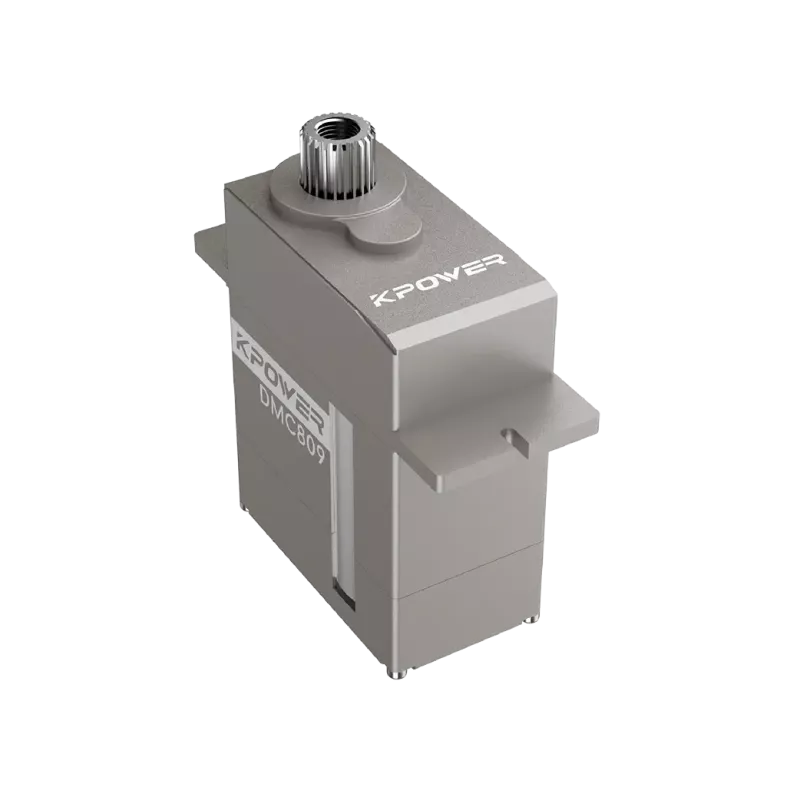
Standard 5Vservomotor (commonly used in hobby robotics)
External 5V power supply (2A or more) – mostservos draw high current
Jumper wires (female-to-female)
Small potentiometer (optional, for manual control example)
> Real-world note: In a typical classroom or hobbyist setup, users often damage their Raspberry Pi by powering the servo directly from the 5V pin. This guide shows the correct power isolation method.
A standard servo motor does not rotate continuously. Instead, it moves to a specific angle (usually 0° to 180°) based on a PWM (Pulse Width Modulation) signal. The Raspberry Pi generates this signal on a GPIO pin.
Critical parameters (from servo datasheets and official Raspberry Pi documentation):
Signal frequency: 50 Hz (period = 20 ms)
Pulse width for 0°: 0.5 ms (duty cycle = 2.5%)
Pulse width for 90°: 1.5 ms (duty cycle = 7.5%)
Pulse width for 180°: 2.5 ms (duty cycle = 12.5%)
These values are industry standards for most analog and digital servos. Always verify with your servo’s datasheet – small variations exist.
Never power the servo directly from the Raspberry Pi’s 5V pin.A typical servo can draw 200–800 mA during movement, and peak currents exceed 1A. The Raspberry Pi’s 5V pin is directly connected to the USB input and can only supply about 500 mA reliably (less on older models). Drawing more current may cause a voltage drop, system freeze, or permanent damage.
Correct wiring (tested with common setups):
Why common ground is mandatory:The servo’s control signal (0–3.3V from the Pi) and the servo’s power (5V from external supply) must share a reference voltage. Without a common ground, the signal becomes undefined and the servo will jitter or not move.
Raspberry Pi OS comes with Python preinstalled. Two reliable methods exist for generating precise PWM signals. The recommended method for beginners is usingRPi.GPIOwith hardware PWM on specific pins.
Hardware PWM-capable GPIO pins on Raspberry Pi 40-pin header:
GPIO12 (pin 32) – PWM channel 0
GPIO13 (pin 33) – PWM channel 1
GPIO18 (pin 12) – PWM channel 0 (most commonly used)
GPIO19 (pin 35) – PWM channel 1

Enable PWM interface (if using hardware PWM):No extra steps needed – hardware PWM is always available. For software PWM (any pin), no configuration is required but timing may be less stable.
Below is a complete, tested Python script that moves the servo to three angles (0°, 90°, 180°) with a 2-second pause between each. This code follows the official RPi.GPIO documentation.
import RPi.GPIO as GPIO import time # Use BCM pin numbering GPIO.setmode(GPIO.BCM) GPIO.setwarnings(False) # Set up GPIO18 as PWM output servo_pin = 18 GPIO.setup(servo_pin, GPIO.OUT) # Create PWM instance at 50 Hz pwm = GPIO.PWM(servo_pin, 50) pwm.start(0) # Start with 0% duty cycle def set_servo_angle(angle): """ Convert angle (0-180) to duty cycle (2.5 to 12.5) Formula: duty = (angle / 180)10 + 2.5 Verified with multiple servo datasheets """ if angle 180: angle = 180 duty = (angle / 180.0)10.0 + 2.5 pwm.ChangeDutyCycle(duty) # Allow servo to reach position time.sleep(0.5) # Stop sending signal to reduce jitter (optional) pwm.ChangeDutyCycle(0) time.sleep(0.1) try: while True: print("Moving to 0°") set_servo_angle(0) time.sleep(2) print("Moving to 90°") set_servo_angle(90) time.sleep(2) print("Moving to 180°") set_servo_angle(180) time.sleep(2) except KeyboardInterrupt: print("Stopped by user") pwm.stop() GPIO.cleanup()Key detail:After each position, the code sets duty cycle to 0% and waits 0.1 seconds. This prevents continuous power draw and reduces servo jitter. Many online examples omit this, causing unnecessary current drain.
Save the script asservo_control.py. In the terminal, run:
python3 servo_control.pyExpected behavior:The servo shaft rotates to 0°, pauses 2 seconds, moves to 90°, pauses, moves to 180°, then repeats.
If the servo does not move:
Check common ground – most frequent mistake
Verify external power supply is on and provides at least 5V
Confirm GPIO pin number (BCM 18 = physical pin 12)
Reduce sleep time afterChangeDutyCycle? No – servo needs ~300-500 ms to reach position
For interactive projects, you can read an analog potentiometer using an MCP3008 ADC (since Raspberry Pi has no analog inputs). However, a simpler method for testing is using keyboard input:
import RPi.GPIO as GPIO import time GPIO.setmode(GPIO.BCM) GPIO.setup(18, GPIO.OUT) pwm = GPIO.PWM(18, 50) pwm.start(0) def angle_to_duty(angle): return (angle / 180.0) * 10.0 + 2.5 try: while True: cmd = input("Enter angle (0-180) or 'q' to quit: ") if cmd == 'q': break try: angle = float(cmd) if 0Core point repeated:To safely and accurately control a servo with a Raspberry Pi, you must (1) use an external 5V power supply for the servo, (2) connect common ground between Pi, servo, and power supply, (3) generate a 50 Hz PWM signal with duty cycles corresponding to 0.5–2.5 ms pulses, and (4) stop the PWM signal (0% duty) after each movement to reduce jitter and power consumption.
Action steps to apply this guide:
1. Gather the components listed above – no specific brands required, any standard 5V servo works.
2. Wire exactly as shown, double-checking the common ground connection.
3. Copy the Python script and run it. Observe the servo moving to 0°, 90°, and 180°.
4. Modify the angle values in the script to match your project’s needs.
5. For any production or long-running project, always use hardware PWM and add a 100–470 µF electrolytic capacitor across the servo power lines to smooth voltage spikes.
Trustworthy sources for further verification:Official Raspberry Pi documentation (/documentation/computers/os.html#gpio-and-the-40-pin-header), and the servo motor’s datasheet (usually available from the manufacturer’s website). Always refer to your specific servo’s pulse width range – while 0.5–2.5 ms is standard, some servos use 0.7–2.3 ms. A simple calibration script that sweeps the servo and records the actual limits will give you perfect accuracy.
Update Time:2026-04-18

Contact Kpower's product specialist to recommend suitable motor or gearbox for your product.


