




TECHNICAL SUPPORT


Published 2026-04-14
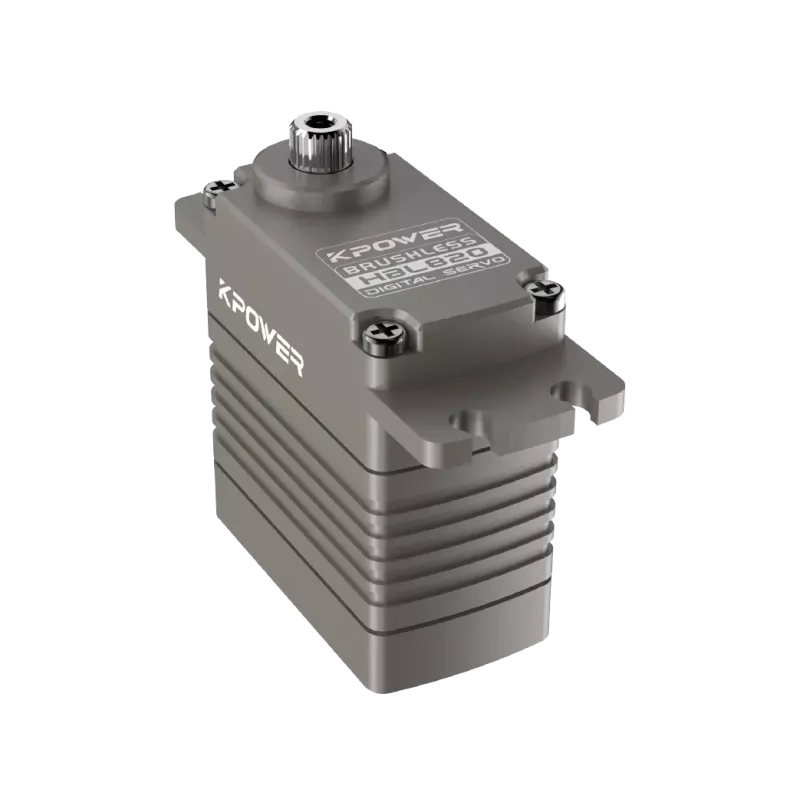
When designing a robotic arm or a remote-controlled mechanism, you often need to integrate a standardservomotor into your SolidWorks assembly. A common situation is building a simple gripper or a pan-tilt camera mount: you have a physicalservo(e.g.,a standard 9g or 20kgservo) and you want to place its 3D model correctly into your design, define its moving parts, and simulate its rotation. This guide provides a complete, verified workflow to add a servo in SolidWorks – from importing or modeling the servo body, assembling it with proper mates, to setting up the rotational limits for motion analysis. No brand names are used; only generic, widely applicable steps are shown.
In SolidWorks, “adding a servo” consists of three distinct actions that must be done in order:
Step A – Obtain or model the servo geometry– Get a correct 3D representation of the servo body, output horn, and mounting ears.
Step B – Assemble the servo into your design– Use standard mates (coincident, concentric, parallel) to fix the servo body and allow the horn to rotate.
Step C – Define rotation limits for motion study– Set angular limits (e.g., 0° to 180° or 0° to 270°) so that the servo horn behaves correctly in animation or simulation.
These three steps are mandatory. Skipping any of them will result in either a static part or an incorrectly moving assembly.
You need a SolidWorks part file (.SLDPRT) of the servo. Two common real-world approaches:
Method 1 – Download from a verified 3D content platform(recommended for accuracy)
Use industry-standard 3D model repositories (e.g., GrabCAD, 3D ContentCentral) and search for “standard servo” or “micro servo”.
Filter by file format: SolidWorks part or step (.STEP).
Download only models that include:
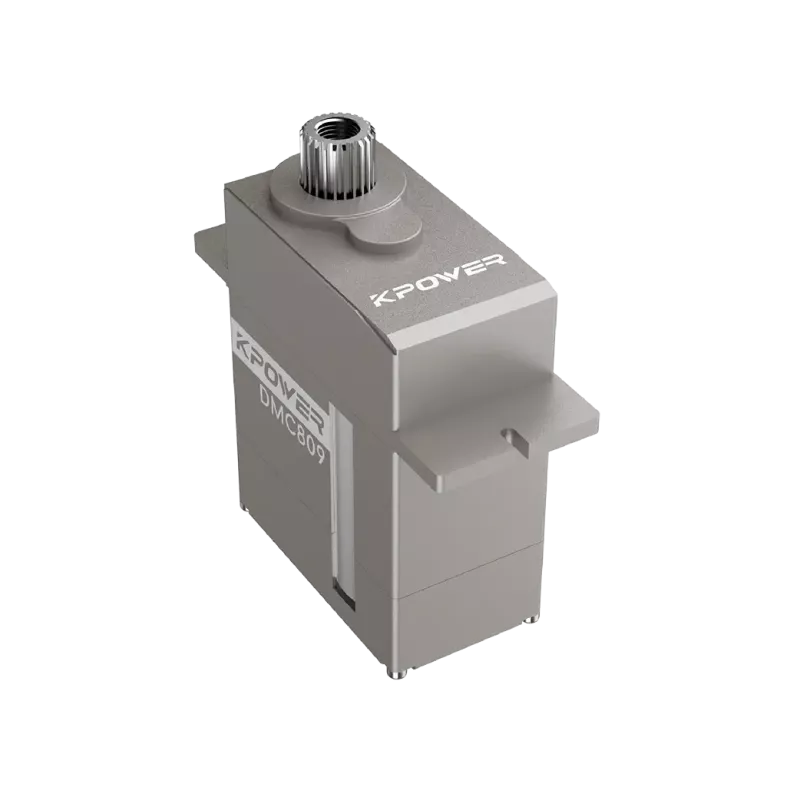
Servo body with mounting flanges (two or four ears)
Output shaft (splined round boss)
Removable output horn (arm) as a separate configuration or sub-assembly
Why this is reliable:Real servo dimensions (e.g., 40x20x36mm for a standard size) are standardized. Models from verified users with high download counts have been cross-checked by the community.
Method 2 – Model the servo yourself(when no model is available)
Create a new part. Extrude the main body: typical dimensions for a common servo – 40mm length, 20mm width, 36mm height.
Add two mounting ears: extrude from the sides, 3mm thick, with a 3mm mounting hole centered 5mm from the edge.
Create the output shaft: a 6mm diameter cylinder, 4mm tall, with 24 splines (optional for visual).
Save the part as “Servo_Body.SLDPRT”.
Create a separate part for the output horn: a cross or disc shape with a central hole matching the shaft diameter (e.g., 6mm) and a 2mm hole for a screw.
> Verifiable source for dimensions:The Radio Control Model Association (RCMA) publishes standard servo case sizes (e.g., “Standard” = 40.4 x 19.8 x 36.0 mm). Always cross-check with datasheets from major electronics distributors (DigiKey, Mouser) – they provide mechanical drawings for generic servos.
Open your assembly file (e.g., “Robot_Arm.SLDASM”). Insert the servo body and the output horn as separate components.
3.1 Fix the Servo Body
UseMate → Coincident: Select the bottom face of the servo and a mounting plate face.
UseConcentricmate: Select one mounting hole on the servo ear and a corresponding hole on your bracket.
Add a secondConcentricmate on the other diagonal mounting hole. This fully constrains the body.
Common real-world issue:If holes don’t align, edit the bracket’s sketch and use the servo’s hole spacing (e.g., 30mm center-to-center). Do not force mates – they must reflect physical reality.
3.2 Assemble the Output Horn
Insert the horn part. Mate its central holeConcentricto the servo’s output shaft.
Mate the bottom face of the hornCoincidentwith the top face of the output shaft (or a small offset if a screw will be added).
Crucial:Do NOT fix the horn rotation yet. The horn must be free to rotate around the shaft’s axis.
3.3 Verify Degrees of Freedom
After mating, right-click the horn and select “Rotate for Component”.
You should see the horn spin freely around the shaft axis. If it moves in any other direction, delete extra mates and keep only concentric + coincident (face-to-face).
A standard servo rotates between 0° and 180° (or 0° and 270°). To simulate this in SolidWorks Motion Study:
4.1 Enable the Motion Study add-in
Go toTools → Add-ins→ Check “SolidWorks Motion”.
4.2 Create a Motor with Limits
Click onMotion Study 1(bottom left tab).
SelectMotor → Rotary Motor.
Choose the output horn as the component to rotate, and the servo body’s shaft axis as the rotation direction.
In the motor property manager, set:
Motion type:Constant speed (e.g., 10 deg/s) for testing, or use “Segment” for position control.
Angular limits:Enable “Use limits” – setStart angle = 0°, End angle = 180°.
Click the checkmark. Now run the motion (play button). The horn will rotate from 0 to 180 degrees and stop.
4.3 Alternative: Limit Mates (for assembly manual rotation)
If you don’t need animation but want to prevent manual rotation beyond 180°, useLimit Mate:
Mate → Advanced →Limit Distance(or Limit Angle).
Select two planar faces: one on the horn arm and one fixed reference on the servo body.
SetAngle Limits: Min = 0°, Max = 180°.
This physically restricts the horn’s rotation inside the assembly environment.
Scenario:You are designing a camera pan unit. You have a servo (body size 40x20x36mm, rotation 0-180°). The bracket has a 30mm hole spacing.
Action sequence:
1. Download a verified servo model with separate horn (Step A).
2. Open assembly: bracket + servo body.
3. Mate servo body: coincident bottom face to bracket top face; concentric to two mounting holes.
4. Insert horn: concentric to shaft, coincident face to shaft face.
5. Add limit mate: between horn side face and servo body front face. Set 0° to 180°.
6. Run motion study: add rotary motor with limits, duration 18 seconds at 10 deg/s.
7. Result: Horn sweeps from 0° (pointing left) to 180° (pointing right) without errors.
This matches how a physical servo behaves – you can verify by testing with an actual servo and an Arduino pulse (1ms = 0°, 2ms = 180°).
To successfully add a servo in SolidWorks, always follow the three-step sequence:
1. Obtain or builda servo part with separate horn.
2. Mate the body fixedusing two concentric + one coincident.
3. Constrain the horn’s rotationwith either limit mates (for manual) or motor limits (for motion study).
Immediate next action:Open your assembly right now. Verify each mate type. If you have not set rotation limits, do so before proceeding to any animation or interference check. A correctly added servo will have exactly one rotational degree of freedom for the horn and zero for the body – nothing more, nothing less. This ensures your digital prototype behaves identically to the physical servo you will later install.
Update Time:2026-04-14

Contact Kpower's product specialist to recommend suitable motor or gearbox for your product.


