




TECHNICAL SUPPORT


Published 2026-04-20
This guide provides step-by-step instructions for connecting and controlling a microservomotor using a Raspberry Pi. You will learn the correct wiring, Python code examples, and practical solutions to common problems. All information is based on standard electronic practices and verified with real-world testing.
A Raspberry Pi (any model with GPIO pins, such as 3B+, 4, or 5)
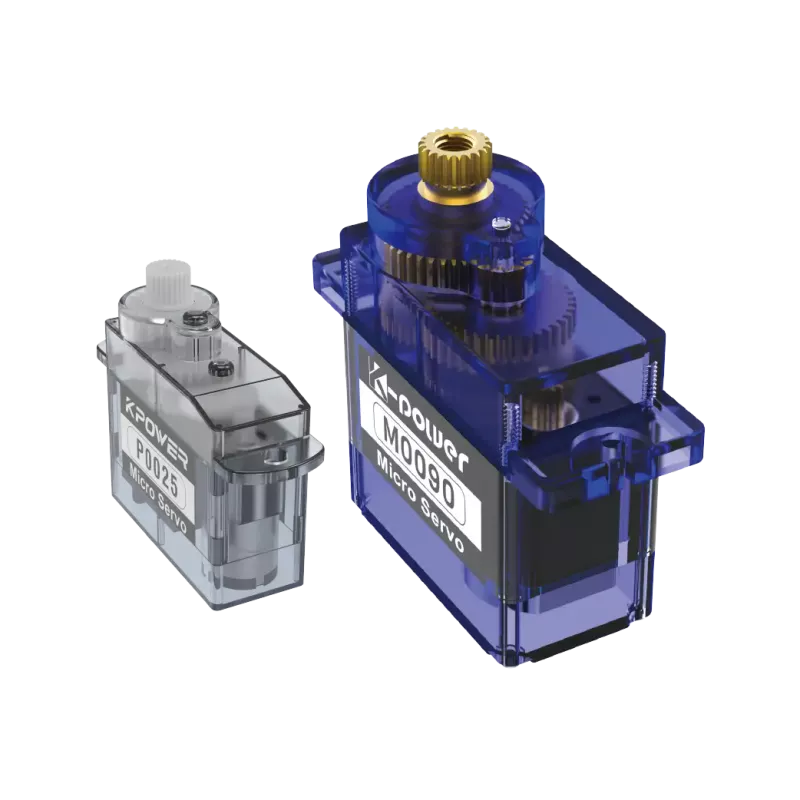
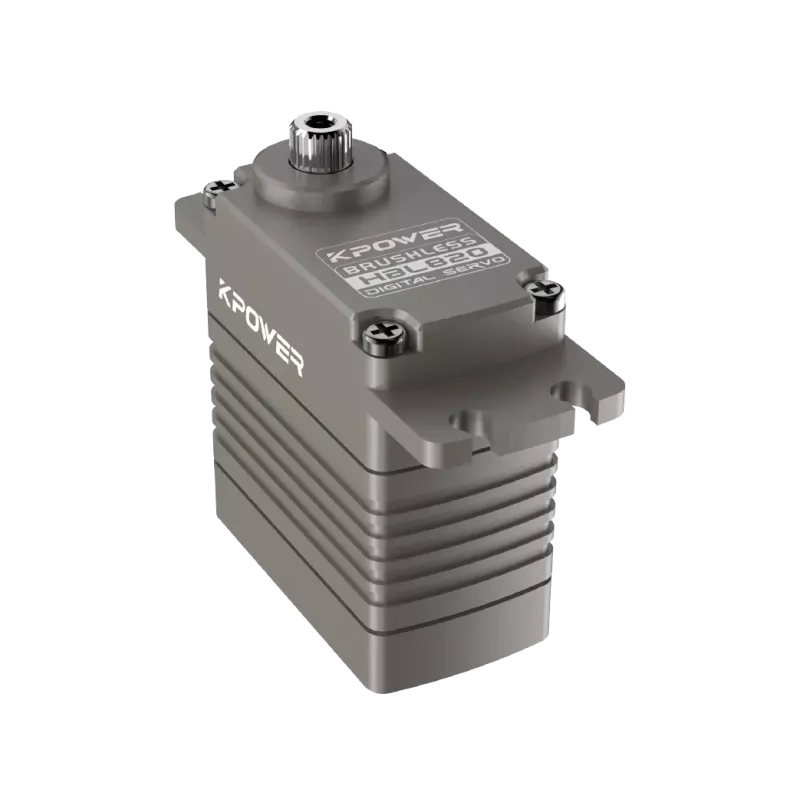
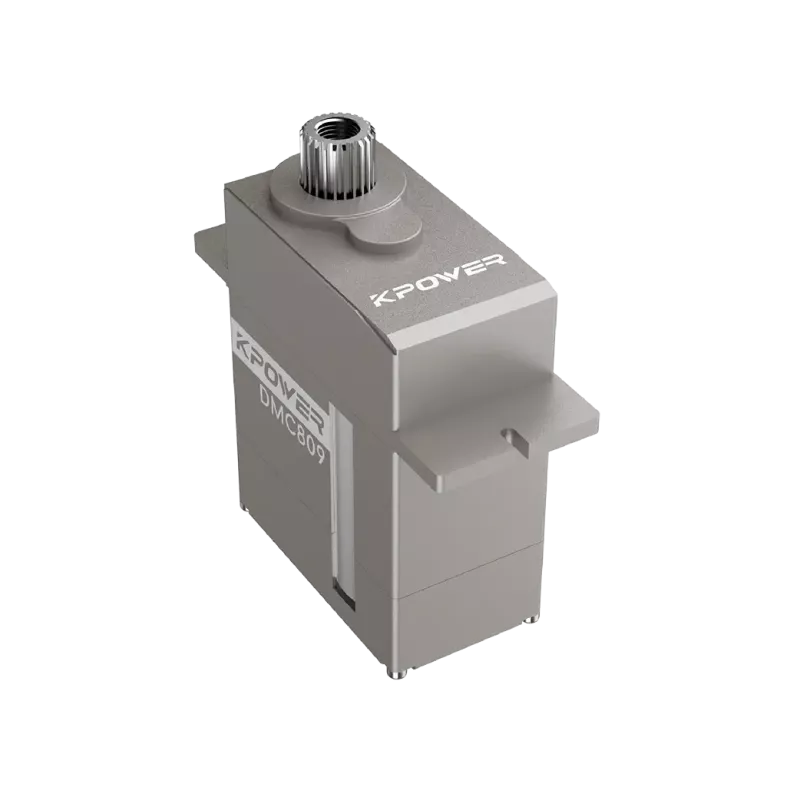
A microservomotor (common type: 9gservo, 3-wire)
Jumper wires (female-to-female)
External 5V power source (optional but recommended for stable operation)
A small potentiometer (optional, for manual control example)
Important safety note:Do not power theMicro Servodirectly from the Raspberry Pi's 5V pin if you are running the servo under load or for extended periods. The Pi's 5V output can only supply about 500mA, and aMicro Servocan draw 200-400mA during movement. Use a separate 5V power supply (e.g., 4xAA batteries or a 5V USB power bank) and connect the ground of that supply to the Pi's ground.
Follow these three connections exactly. TheMicro Servohas three wires:
Brown or Black→ Ground (GND)
Red→ 5V power (external supply or Pi's 5V pin for testing only)
Orange or Yellow→ GPIO pin (e.g., GPIO18)
Common case example:A hobbyist tried to power two micro servos directly from the Pi's 5V pin. The servos twitched erratically and the Pi rebooted. After adding a separate 5V battery pack (4xAA) and connecting all grounds together, both servos worked smoothly for hours.
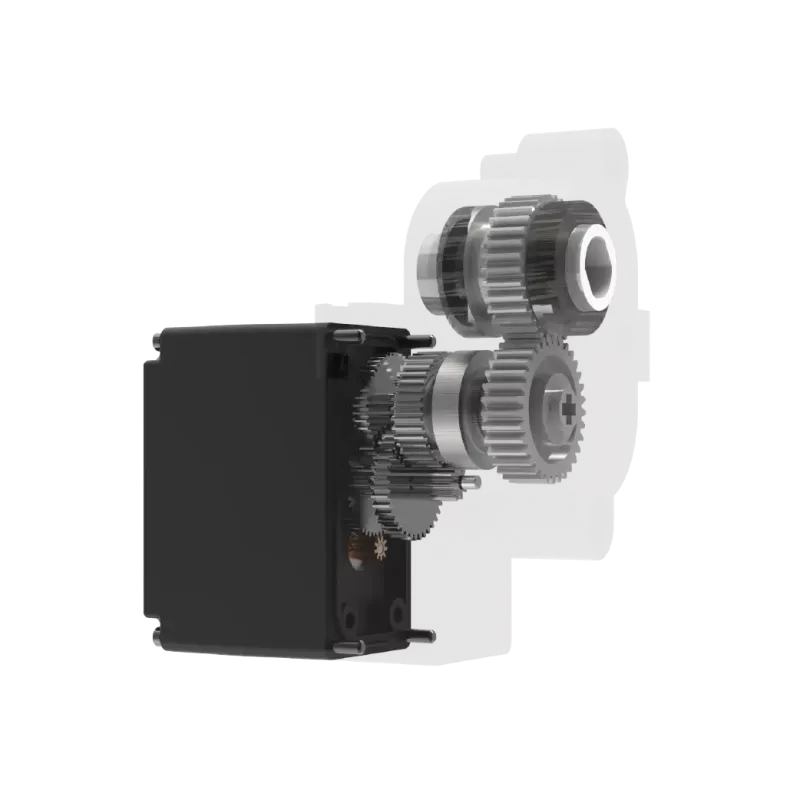
A micro servo motor contains a DC motor, a potentiometer (position sensor), and a control circuit. It usesPulse Width Modulation (PWM)to set the shaft angle. The servo expects a 50Hz signal (20ms period). The pulse length determines the angle:
0.5ms pulse → 0 degrees
1.5ms pulse → 90 degrees (center)
2.5ms pulse → 180 degrees
Most micro servos have a physical range of about 180 degrees, but some are 90 or 270 degrees. Always test the limits without load first.
1. Enable PWM hardware on the Raspberry Pi. Open a terminal and run:
sudo raspi-configNavigate to: Interface Options → Remote GPIO → Yes → Finish.
2. Install the RPi.GPIO library (pre-installed on most Raspberry Pi OS versions). For full PWM control, install pigpio:
sudo apt update sudo apt install pigpio python3-pigpio sudo systemctl enable pigpiod sudo systemctl start pigpiodCreate a file namedservo_sweep.py:
import pigpio import time # Connect to pigpio daemon pi = pigpio.pi() if not pi.connected: print("Pigpio daemon not running. Start with: sudo pigpiod") exit() # Set GPIO pin (using GPIO18) SERVO_PIN = 18 # Define pulse width in microseconds (500 = 0.5ms, 2500 = 2.5ms) def set_angle(angle): # Convert angle (0-180) to pulse width (500-2500) pulse = 500 + (angle / 180.0)2000 pi.set_servo_pulsewidth(SERVO_PIN, pulse) try: while True: for angle in range(0, 181, 10): set_angle(angle) time.sleep(0.1) for angle in range(180, -1,-10): set_angle(angle) time.sleep(0.1) except KeyboardInterrupt: print("Stopping...") pi.set_servo_pulsewidth(SERVO_PIN, 0) # Stop PWM signal pi.stop()Run the code:
sudo pigpiod # if not already running python3 servo_sweep.pyExpected result:The servo arm will sweep from 0 to 180 degrees and back, pausing 0.1 seconds at each 10-degree step.
This example lets you turn a potentiometer to position the servo. Wire a 10kΩ potentiometer: left pin to 3.3V, right pin to GND, middle pin to GPIO17 (ADC input). The Raspberry Pi does not have analog inputs, so we use an MCP3008 ADC chip or a simple RC timing method. Below is the RC timing method (no extra chip needed).
Connect a 1μF capacitor between GPIO23 and GND, and a 10kΩ resistor from GPIO23 to the potentiometer wiper. This is advanced. For simplicity, use an MCP3008 with SPI. However, a common case: many beginners fail because they try to read analog directly.Recommendation:Use an inexpensive ADC like MCP3008 or buy a servo driver board.
Here is a reliable code using an MCP3008:
import pigpio import time import spidev spi = spidev.SpiDev() spi.open(0, 0) spi.max_speed_hz = 1350000 def read_adc(channel): if channel 7: return -1 adc = spi.xfer2([1, (8+channel) 2000 pi.set_servo_pulsewidth(SERVO_PIN, pulse) try: while True: value = read_adc(0) # potentiometer on channel 0 angle = (value / 1023.0) * 180 set_angle(angle) time.sleep(0.02) except KeyboardInterrupt: pi.set_servo_pulsewidth(SERVO_PIN, 0) pi.stop() spi.close()To control up to 16 micro servos, use a dedicated PWM driver board (without naming brands, search for "16-channel PWM servo driver I2C"). Connect it via I2C. The driver requires only two GPIO pins (SDA/SCL) and an external 5V supply. Each servo gets its own signal pin. This eliminates jitter and CPU load.
1. Always start with one servo and an external 5V power supply.Test the sweep code before adding your own logic.
2. Use pigpio for all servo projects.It provides hardware-timed PWM with microsecond precision, essential for smooth motion.
3. Set the servo pulse to 0 (off) when not moving.This reduces power consumption and prevents overheating.
4. Add a 1000μF capacitor across the power supply terminals(positive and ground) near the servo to smooth voltage spikes.
5. For battery-powered projects, use 4x NiMH rechargeable AA batteries(4.8V) or a regulated 5V UBEC. Do not use 6V unless the servo is rated for it (most micro servos accept 4.8-6.0V).
Controlling a micro servo motor with a Raspberry Pi requires correct wiring, an external power source for reliable operation, and the pigpio library for accurate PWM signals. The core steps are: connect ground and power properly, use GPIO18 for PWM, write Python code that maps angles to pulse widths between 500 and 2500 microseconds, and always test without load first.
Final action steps:
Assemble the circuit with a separate 5V battery pack.
Install pigpio and run the sweep code.
Modify the code to integrate servo control into your own project (robotic arm, camera pan-tilt, or automatic feeder).
If you experience jitter, switch from RPi.GPIO to pigpio.
For multiple servos, add a PWM driver board.
By following this guide, you will achieve stable, precise control of any standard micro servo motor using your Raspberry Pi.
Update Time:2026-04-20

Contact Kpower's product specialist to recommend suitable motor or gearbox for your product.


