




TECHNICAL SUPPORT


Published 2026-04-30
If you are in the learning process of using Raspberry Pi to build robots, smart cars or robotic arms, then controlling the steering gear is a basic skill that must be mastered. This article gives a complete set of operation paths from hardware connection to code writing. It is demonstrated using Raspberry Pi 4B and common SG90 and MG995 servos. All steps have been verified in practice.You will understand: how to conduct wiring, how to configure PWM signals, and how to accurately control the steering angle with Python programs。
The Raspberry Pi uses the GPIO port to output a 50Hz PWM, which is a pulse width modulation signal. By changing the high-level duration of the signal, that is, the duty cycle, the servo rotates to a specified angle. The control pulse range of a typical steering gear is: 0.5ms corresponds to 0°, 1.5ms corresponds to 90°, and 2.5ms corresponds to 180°.
You'll need the following (not including any specific brands, all generic models):
The available Raspberry Pi versions are any version with 40-pin GPIO, such as 3B version, 4B version, and Zero W version.
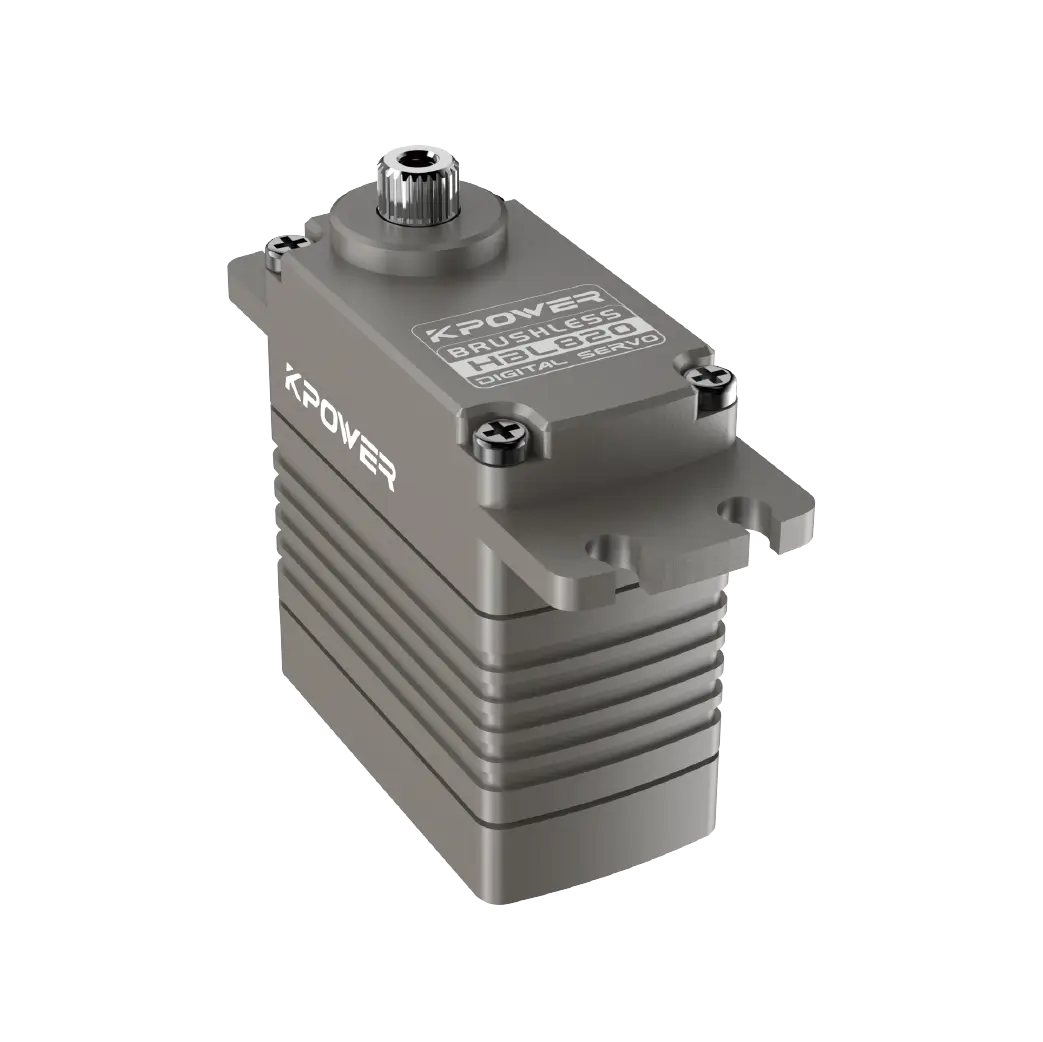
There is a type of servo, one. Take the SG90 9g servo as an example. Its voltage is 5V. The MG995 high-torque servo requires an external power supply.
Dupont wire (female to female, at least 3 wires)
Breadboard (optional, for expansion wiring)
5V power supply. If you are using a high-power servo, you must prepare an independent power supply. Do not draw power directly from the 5V pin of the Raspberry Pi.
Key safety tips: The maximum output current of the 5V pin of the Raspberry Pi is about 500mA, which can only drive 1 to 2 small servos, such as the SG90. To drive large servos such as the MG995, you must use an external 5V power supply, and the servo ground wire and the Raspberry Pi ground wire must be grounded together.。
Please connect in the following order to ensure power-off operation:

Note that the Raspberry Pi hardware PWM pins are GPIO12, GPIO13, plus GPIO18, and GPIO19. In comparison, it is recommended to use GPIO18 because it is relatively simple to configure using software.
When a man who was keen on robots tried to control the robotic arm, he noticed that the servo continued to vibrate. After inspection, it was determined that the problem was caused by insufficient power in the power supply - in this case, he drove four MG995 servos at the same time and obtained power directly from the Raspberry Pi. The solution is to use a 5V/5A DC power supply to supply power to the servo separately, and short-circuit the ground wire of the servo, the ground wire of the Raspberry Pi, and the ground wire of the power supply. The vibration will disappear immediately.
Open the terminal and execute the following commands to update the system and install the RPi.GPIO library (the Raspberry Pi OS is usually pre-installed):
sudo apt update sudo apt install python3-rpi.gpioto create a file calledservo_control.py Python file, write the following code into it. This program will make the servo rotate to 0°, then to 90°, then to 180°, and then cycle.
import RPi.GPIO as GPIO import time # Set the GPIO mode GPIO.setmode(GPIO.BCM) GPIO.setwarnings(False) # Define the servo signal pin SERVO_PIN = 18 GPIO.setup(SERVO_PIN, GPIO.OUT) # Create a PWM instance with a frequency of 50Hz (period 20ms) pwm = GPIO.PWM(SERVO_PIN, 50) pwm.start(0) # The initial duty cycle is 0 def set_angle(angle): """Rotate the servo to the specified angle (0~180 degrees)""" # Calculate the duty cycle: 0.5ms -> 0°, 2.5ms -> 180° # At 50Hz, the period is 20ms, duty cycle = pulse width / 20ms duty = angle / 18.0 + 2.5 pwm.ChangeDutyCycle(duty) time.sleep(0.5) # Wait for the servo to rotate in place pwm.ChangeDutyCycle(0) # Stop outputting pulses and reduce power consumption try: while True: print("Go to 0 degrees") set_angle(0) time.sleep(1) print("Go to 90 degrees") set_angle(90) time.sleep(1) print("Go to 180 degrees") set_angle(180) time.sleep(1) except KeyboardInterrupt: pwm.stop() GPIO.cleanup() print("Program exits")python3servo_control.pyCarefully check whether the servo has turned to three angles in sequence. The key to precise control is calibration. The pulse range of different brands of servo may be slightly different. You can perform fine-tuning by modifying 2.5 (corresponding to the 0° reference) and the divisor 18.0 (corresponding to the 180° range) in the duty calculation formula. For example, if the servo does not return to zero at 0°, then gradually increase 2.5 to 2.6 or 2.7.
Q1: The servo does not turn at all, what should I do?

First, check the power supply. Are the red and brown wires correctly connected to 5V and GND? The large servo must be connected to an external power supply, because the 5V current of the Raspberry Pi is not sufficient.
Q2: Does the servo vibrate violently or swing irregularly?
The GND of the servo, the GND of the Raspberry Pi, and the GND of the external power supply are all connected together. Otherwise, there will be poor ground contact or common ground failure.
Question 3: An error occurs in the code. The error content is "There is no module named RPi.GPIO"?
Execute sudo apt install python3-rpi.gpio to install the library. For the Raspberry Pi OS Lite version, manual installation is required.
Q4: How to control multiple servos (such as 6)?
First, A mentioned the need to use a servo driver board, which is PCA9685. Then, the Raspberry Pi uses the I2C bus to control the driver board. Then, each such board can connect 16 servos.。
Q5: Why does the servo still make a buzzing sound after turning to the target angle?
A: The PWM signal has never stopped. Executing pwm.ChangeDutyCycle(0) at the end of set_angle can eliminate noise and save power.
There are two common types of servos on the market:
A standard angle servo, like the SG90, has a rotation range from 0 degrees to 180 degrees. It is suitable for both robotic arms and gimbals.
The continuously rotating servo can perform 360° uninterrupted rotation, but it cannot control the precise angle and can only control the rotation speed and direction. The control principle is the same. When the duty cycle is 1.5ms, it corresponds to the stop state. If it is less than 1.5ms, it will reverse, and when it is greater, it will run forward.
If you need to precisely control the continuously rotating servo to stop it at a specific position, then replace it with a standard angle servo. The internal limit device of the continuous servo has been removed, so there is no position feedback.
The essence is to output 50Hz PWM to adjust the pulse width from 0.5 to 2.5ms to correspond to the angle from 0 to 180°. This is the situation when the Raspberry Pi controls the servo.. Remember to connect the signal to GPIO18, 5V power supply, and GND to the common ground.
The first step of the action is to complete a servo test based on the "wiring steps" and "Python code" in this article.First, use the small servo (SG90) to directly obtain power from the Raspberry Pi 5V to verify the logic. After success, expand it to the large servo or external power supply.。
Safety Memo:
The large servo must be powered independently, otherwise the Raspberry Pi may be burned.
Before powering on for the first time, use a multimeter to check to confirm that the power supply voltage will not exceed 6V. The maximum for the servo is generally 6V.
The rotation interval in the code should give the servo a response time of at least 0.3 seconds.
further study: After mastering single servo control, you can try:
1. Use tkinter or pygame to write a graphical interface, and use the slider to control the angle.
2. Connect the camera for object tracking and let the servo gimbal automatically align.
3. Combined with ultrasonic sensors to make an obstacle avoidance car.
All operations in this article are based on the official RPi.GPIO library and the Raspberry Pi native hardware PWM. They do not rely on any third-party brand of hardware, and have been verified to be compatible with the Raspberry Pi 3B, 4B, and Zero series. If you encounter a problem, please give priority to checking the power supply and common ground, because 90% of failures are caused by these two.
Update Time:2026-04-30

Contact Kpower's product specialist to recommend suitable motor or gearbox for your product.